


(last updated: 2020-08-10 @ 13:40 EST / 2020-08-10 @ 17:40 UTC )
SQL Server Management Studio (SSMS) for SQL Server 2016 added some interesting enhancements for the vertical scroll bar: Map Mode and Annotations. Map mode (with Source Overview enabled) changes the vertical scroll bar into a simplistic graphical representation of the entire script (as opposed to the solid grey bar that is merely sized proportionally to the length of the script). The benefit of the Source Overview is that you can get a better sense of where certain sections of code are, and this reduces the amount of time it takes to find what you are looking for. Map mode also has a Preview Tooltip option that allows you to see a small sample of the actual text at the position represented by where the cursor is placed on the scroll bar.
Annotations show the relative position of certain aspects of the script, such as errors, changes, etc. There are four types of annotations, the first three of which are shown in their own columns on the left side of the scroll bar:
- "Changes" occupy the left column:
- yellow = Unsaved ( "Track Changes before save" )
- green = Saved ( "Track Changes after save" )
- "Marks" occupy the middle column:
- maroon = Breakpoints ( "Breakpoint (Scroll Bar)" )
[ NOTE: Starting in SSMS 18.0, breakpoints no longer exist since the T-SQL Debugger has been removed ] - black = Bookmarks ( "Bookmark (Scroll Bar)" )
- light orange = Find Match ( "Find Match Highlight" )
- maroon = Breakpoints ( "Breakpoint (Scroll Bar)" )
- "Errors" occupy the right column, and are shown in red. ( "Syntax Errors" )
- "Caret Position" is a thin, blue line going horizontally across the scroll bar. This represents the line of the script that the cursor is on. ( "Overview caret" )
The colors noted in the list above are the default colors. However, all of those colors are customizable. To change the color of any of those annotations:
- In the menus, go to:
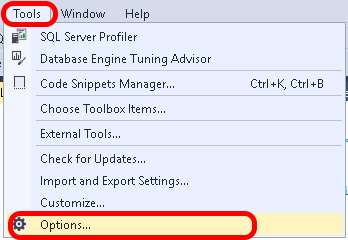
Tools ➞ Options… ➞ Environment ➞ Fonts and Colors ➞ Show settings for: "Text Editor" - In the Display items: list, find the name that corresponds to the value in parenthesis in the list above (e.g. to change the color for "Errors", select "Syntax Errors")
- Change the color
- Click the “OK” button
Examples
The following two screen shots show how the vertical scroll bar looks for a script that isn’t very long. The scroll bar takes up over half of the vertical space, and is 0.5 inches wide (Source Overview = "Narrow"). There are three other widths to choose from: "Off", "Medium", and "Wide". Please note that in Map Mode there are no up and down arrows at the top and bottom of the vertical scroll bar.
This first screen shot shows the script when it is scrolled all the way to the top (i.e. Line 1 is at the top of the editor). You can also see three of the four types of annotations: "Changes" are the yellow and green, "Marks" are the maroon (Bookmarks and Find Matches not shown here), and "Caret Position" is the blue line.


This second screen shot shows the script when it is scrolled to the bottom. You can see some of the same types of annotations and some new ones: "Errors" in red, and Find Matches (another type of "Marks" ; results of Find / Replace) in light-orange.


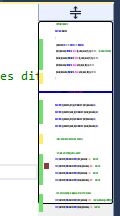
The following screen shot shows how the vertical scroll bar looks for a script that is a bit long. The scroll bar takes up very little of the vertical space (see solid red arrow). Also shown is the Preview Tooltip that pops up if you leave the cursor over the scrollbar for at least 1 second (see blue-outlined white arrow). The Tooltip popup seems to be 7 lines tall and 70 characters wide, and remains visible until the cursor is moved away from the scroll bar.


Enabling / Configuring
To enable / configure any of these options, you first go to the Tools menu and select Options…:

On the left side of the Options dialog that opens, navigate to Text Editor, then to Transact-SQL, and finally to Scroll Bars:


There is also a Scroll Bars area within All Languages (which you can easily get to by right-clicking on the scroll bar in the editor and selecting Scroll Bar Options…), but for now let’s assume that we only want these options set for SQL scripts.
On the right side of the Options dialog you will see the various annotation and map mode options. The image below shows this area of the dialog along with the effect (highlighted) that each of the options has:


Behavioral Differences
- Annotations ("Changes" | "Marks" | "Errors"):
- In Bar Mode, and Map Mode with Source overview = "Off"
- Annotations fit within existing scroll bar width. Scroll bar width does not change based on the combination of enabled annotations.
- In Map Mode with Source overview = "Narrow" | "Medium" | "Wide"
- Annotations take up additional space to the left of the scroll bar. Scroll bar width does change based on the combination of enabled annotations.
- In Bar Mode, and Map Mode with Source overview = "Off"
- Everything else:
- In Bar Mode
- Up and Down Arrows exist to incrementally scroll up and down
- Left-click in scroll bar does “Page Up” or “Page Down”, based on cursor being above or below the bar
- No option for Preview Tooltip
- In Map Mode
No Up and Down ArrowsUp and Down Arrows were added somewhere between versions 18.0 and 18.3.1- Left-click in scroll bar does “Scroll Here” to go immediately to mouse-cursor location
- Optional Preview Tooltip
- In Bar Mode
The chart below shows how the vertical scroll bar appears in Bar Mode and each of the four Source Overview settings in Map Mode. The chart also includes the behavior information detailed above.
| Bar Mode | Map Mode – Source Overview | |||
|---|---|---|---|---|
| (default) | Off | Narrow | Medium | Wide |
 |
 |
 |
 |
 |
| Annotations fit within scrollbar | Annotations take up extra space | |||
| Up and Down Arrows | ||||
| Left-click = "Page Up" / "Page Down" | Left-click = "Scroll Here" | |||
| No "Preview Tooltip" | Option for "Preview Tooltip" | |||
